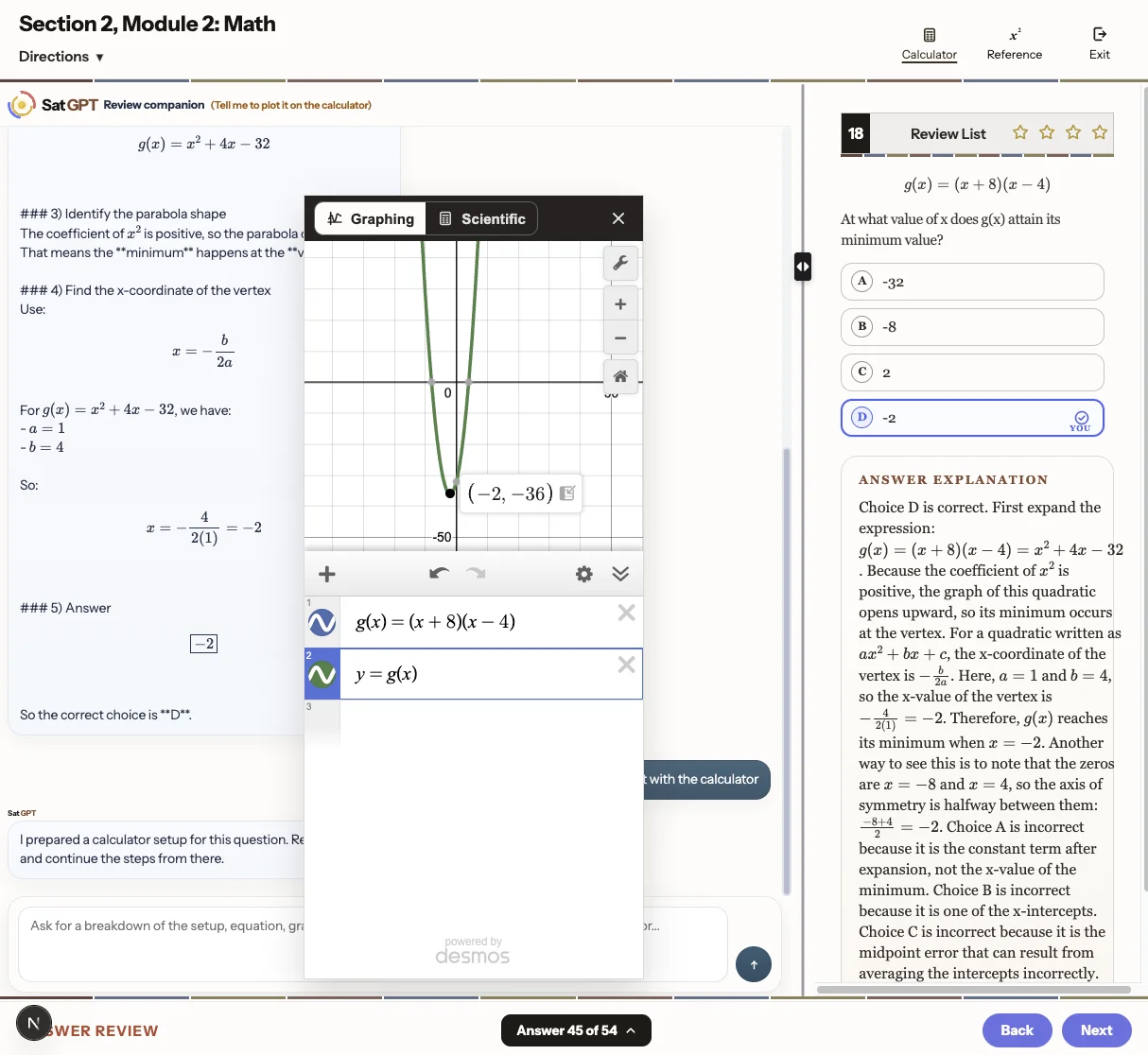
On the RW quiz review screen, turn on Highlights & Notes first. Then select the word, phrase, or sentence you want to work with, and ask the chat assistant to note the meaning of the word, summarize the key point of the sentence, or save the explanation as a note.
The important point is that you should clearly instruct the AI to write it into your note. Phrases like "note this," "write this in the note," or "save this to my notes" make the intent explicit, so the assistant knows you want the result stored instead of just explained once in chat.
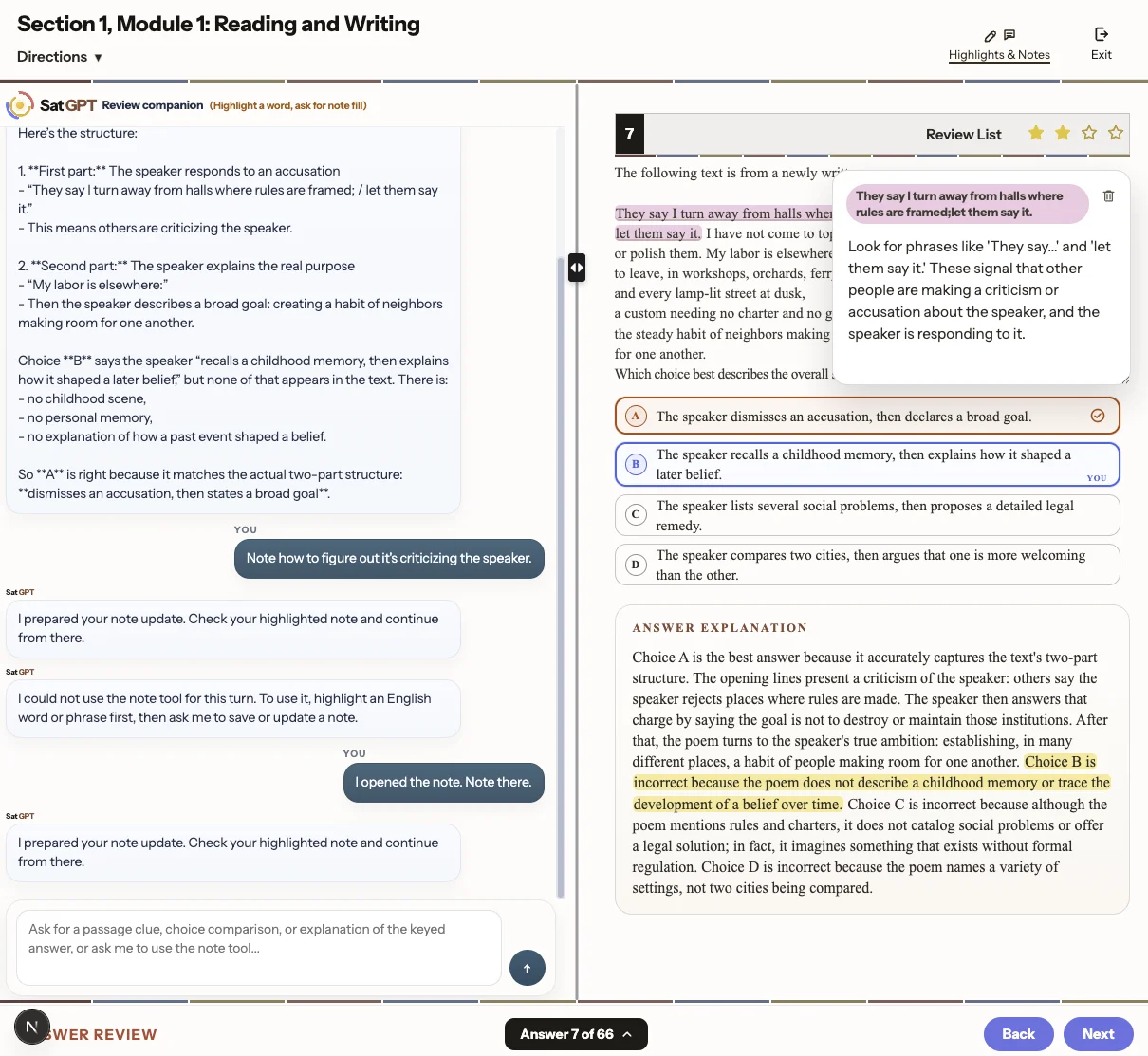
On the Math quiz review screen, the calculator is most useful when you want to solve a problem through a graph. You can ask the assistant to solve the question with the calculator graph, plot the equation in the calculator, or compare intersections directly on the graph.
The key point here is to use the word "calculator" in your instruction. When you explicitly mention the calculator, the AI understands that it can switch to calculator-based reasoning and use the graphing flow instead of giving only an algebraic explanation.